Introduction to Canva AI and Adobe Firefly
Creating eye-catching marketing visuals is essential for businesses striving to stand out in today’s crowded digital landscape. Two powerful tools that can transform your design workflow in 2026 are Canva AI and Adobe Firefly. These platforms harness AI technology to simplify the creative process, enabling both beginners and seasoned marketers to create stunning visuals with ease.
Canva AI leverages artificial intelligence to streamline template selection, customization, and layout adjustments. Meanwhile, Adobe Firefly offers advanced AI-driven features that enhance your existing designs with creative effects, colorization, and content-aware adjustments. Combining these tools provides a dynamic approach to crafting professional visuals that resonate with your audience.
In this guide, we’ll walk you through the entire process of using Canva AI and Adobe Firefly step-by-step. Whether you’re designing social media graphics, email headers, or ad banners, you’ll learn actionable tips to make your marketing visuals stand out, maintain brand consistency, and export your creations across multiple channels seamlessly.
Setting Up Your Design Project
Before diving into design, setting up your project correctly is crucial. Starting with clarity helps you avoid common pitfalls later.
- Define your visual’s purpose. Are you creating a social media post, website banner, email campaign image, or print flyer? Each medium demands different dimensions and design considerations.
- Identify your target audience. Understanding who you’re speaking to informs imagery, tone, and style.
- Gather existing brand assets. Logos, color palettes, fonts, and key messaging should be ready to upload or integrate.
- Choose the appropriate platform for the task. Canva AI excels at template-driven creation while Adobe Firefly enhances and polishes designs post-creation.
Example: If you aim to design an Instagram promotional post for a summer sale, your project will likely be 1080x1080 pixels and should include strong calls to action with vibrant, appealing visuals.
Using Canva AI for Template Selection and Customization
Canva AI is a fantastic place to start crafting visuals thanks to its AI-powered template engine. Here’s how to harness it effectively:
1. Create a New Design
Open Canva and click on "Create a Design." Enter your preferred dimensions or select a preset like “Instagram Post” or “Facebook Cover.”
2. Leverage AI-Based Template Suggestions
In the search bar, enter keywords related to your campaign (e.g., “summer sale,” “tech conference,” “real estate”). Canva AI will instantly suggest templates that fit your criteria, ensuring relevance and style compatibility.
3. Customize Templates with AI Assistance
Once you select a template, Canva AI can auto-adjust colors and fonts to match your brand by uploading your brand profile or manually applying your brand colors and fonts. Use the “Magic Write” feature to generate catchy headlines or product descriptions based on your input.
4. Drag-and-Drop Editing Made Easy
Replace placeholder images with your photos or free stock images from Canva’s library. The AI will suggest complementary design elements that heighten visual impact without clutter.
5. Using AI to Optimize Layout
Canva AI offers suggestions to improve design balance and hierarchy through smart element alignment and spacing adjustments—simply accept the prompts to enhance readability and appeal.
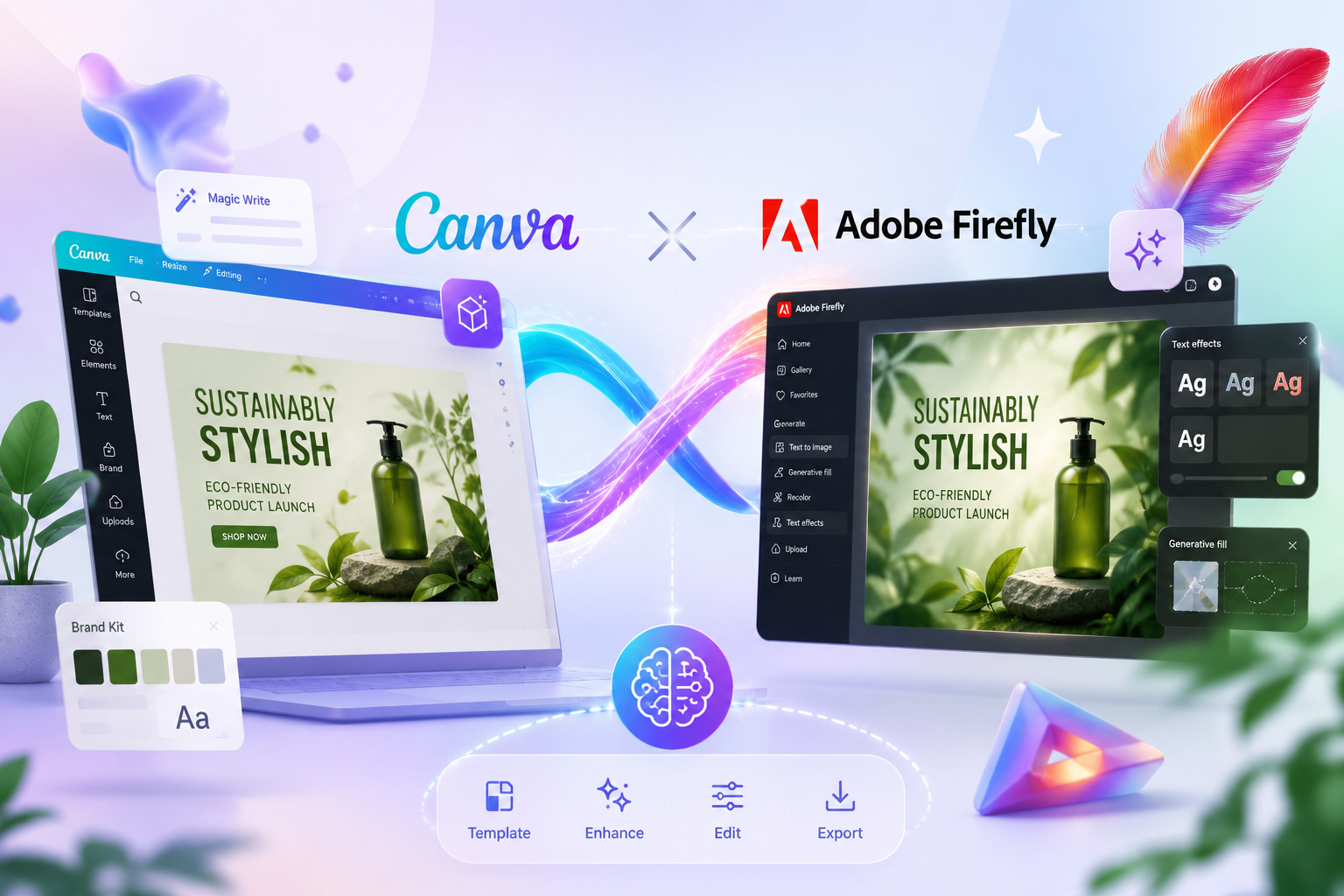
Practical Example: For an eco-friendly product launch, search “green product” in Canva AI. Pick a fresh, nature-themed template. Upload your logo and paste your brand’s hex color codes to auto-update the design. Use the Magic Write feature to create a short tagline like “Sustainably Stylish” and position it prominently.
Enhancing Visuals with Adobe Firefly Features
After creating your rough draft in Canva AI, Adobe Firefly helps you elevate the design with next-level refinements. Follow these steps to amplify your visuals:
1. Import Your Canva Design
Download your Canva visual as a high-resolution PNG or JPEG, then upload it to Adobe Firefly’s workspace.
2. Use AI-Powered Colorization and Effects
Firefly’s AI can enhance colors, adjust lighting, and apply mood-focused filters while intelligently preserving important design elements like text and logos.
3. Content-Aware Editing
Take advantage of Firefly’s content-aware features to remove unwanted background objects or distractions with a simple brush tool. This helps in keeping the focus on your message.
4. Generate Custom AI Effects
Use Firefly’s AI-generated effects to add dynamic gradients, shadowed overlays, or artistic textures that align with your marketing theme, making the design more compelling.
5. Experiment with Typography Enhancements
Upload your project as a PSD to Firefly to refine text styles. AI suggestions can propose font adjustments, color contrasts, or spacing tweaks for optimal legibility.
Practical Example: For the eco-friendly product post designed earlier, use Firefly to boost the green tones and add a subtle, dreamy sunlight filter to evoke freshness. Remove any background distractions and add a textured leaf overlay for organic appeal.
Tips for Brand Consistency and Quick Edits
Maintaining brand consistency across all visuals is key for recognition and trust. Here’s how to make it effortless with Canva AI and Adobe Firefly:
- Build and use Canva Brand Kits: Store your colors, fonts, and logos directly in Canva to apply them instantly across projects.
- Save customized templates in Canva: Once perfected, save your designs as templates to speed up future campaigns.
- Use Firefly’s batch editing features: Apply the same AI enhancements to multiple visuals at once, ensuring a uniform look.
- Maintain a style guide document: Keep track of dos and don’ts related to fonts, colors, and imagery styles for quick reference when tweaking designs.
- Leverage version control: Canva allows you to revert to earlier versions if an edit doesn’t fit your brand style, saving time and headaches.
Example Tip: If your brand uses a blue and orange palette, upload those hex codes and set them as default colors in Canva. Any new template you pick will automatically incorporate those tones, ensuring fast, consistent design updates.
Exporting and Using Your Visuals Across Channels
Once your design is polished and proofed, preparing it for distribution is your next step. Both Canva and Adobe Firefly support flexible export options to meet all channel requirements.
1. Choose the Right Format
Export your visuals as PNGs for high-quality web graphics, JPEGs for a smaller file size, or PDFs for print marketing collateral.
2. Adjust Resolution for Platform Needs
For social media posts, 72 dpi at optimized pixel dimensions is suitable. For print flyers or banners, export at 300 dpi or higher from Canva to Firefly for crisp results.
3. Use Multi-Platform Preview Features
Canva offers previews for different social media channels, enabling you to check how your post will appear on Instagram, Facebook, LinkedIn, and more before downloading.
4. Naming Conventions for Easy Asset Management
Use systematic file names like “SummerSale_IG_Post_1080x1080_2026” to organize your files and keep track of versions.
5. Direct Publishing from Canva
Canva AI supports direct posting to social media platforms and email marketing tools, streamlining your campaign launch.
Final Practical Example: After finishing the eco-friendly product post in Firefly, export it at 1080x1080 pixels as a PNG. Upload it back into Canva to preview how it would look as an Instagram ad. Then use Canva’s direct share feature to schedule the post.
Takeaways
- Starting your project with clear goals and brand assets streamlines the entire design process.
- Canva AI is perfect for generating tailored templates quickly and efficiently, even for beginners.
- Adobe Firefly is invaluable for adding professional-level enhancements that make your visuals pop.
- Maintaining brand consistency through saved kits and batch edits saves time and supports a unified visual identity.
- Export strategically based on platform needs, and utilize built-in preview and sharing options for smooth rollout.
Combining Canva AI’s intuitive template-based design with Adobe Firefly’s cutting-edge AI enhancements offers marketers a powerful, accessible way to create stunning graphics without needing extensive design experience.
Conclusion
Mastering marketing visuals doesn’t require a design degree anymore. With Canva AI and Adobe Firefly, 2026’s most innovative AI tools, you have everything needed to make your brand shine across digital and print platforms. From easy-to-customize templates to smart effect enhancements, these tools eliminate friction and inspire creativity.
Follow the step-by-step process outlined in this guide to set up your project, craft impactful visuals, maintain brand cohesion, and export for any channel. Soon, you’ll be producing marketing materials that not only look professional but also engage your audience and drive results.
Start experimenting with Canva AI and Adobe Firefly today and watch your marketing visuals reach new heights!